Guides · 7 steps
How to create WhatsApp stickers from your photos
Make a pack your friends will recognize instantly. You can start from your own photos and images, then combine cutouts, text, drawings, and other visual details in the editor.
Available on Google Play and AppGallery
Your photo is just the beginning.
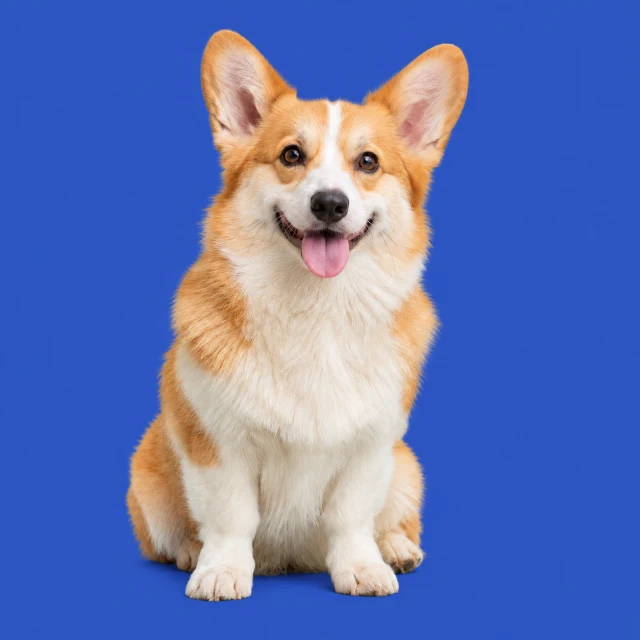
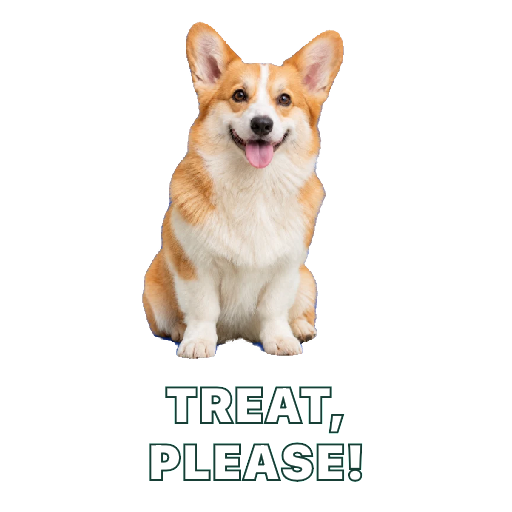
The example photo was generated with AI. The cutout and sticker were made in the actual app.
Before you begin
Sticker Downloader on Android, WhatsApp, and photos or images you have permission to use.
Create a new pack
From the library, choose Create pack. Enter a pack name and an author name so you can recognize your collection later.
Give your pack a name and enter its author before creating the stickers. 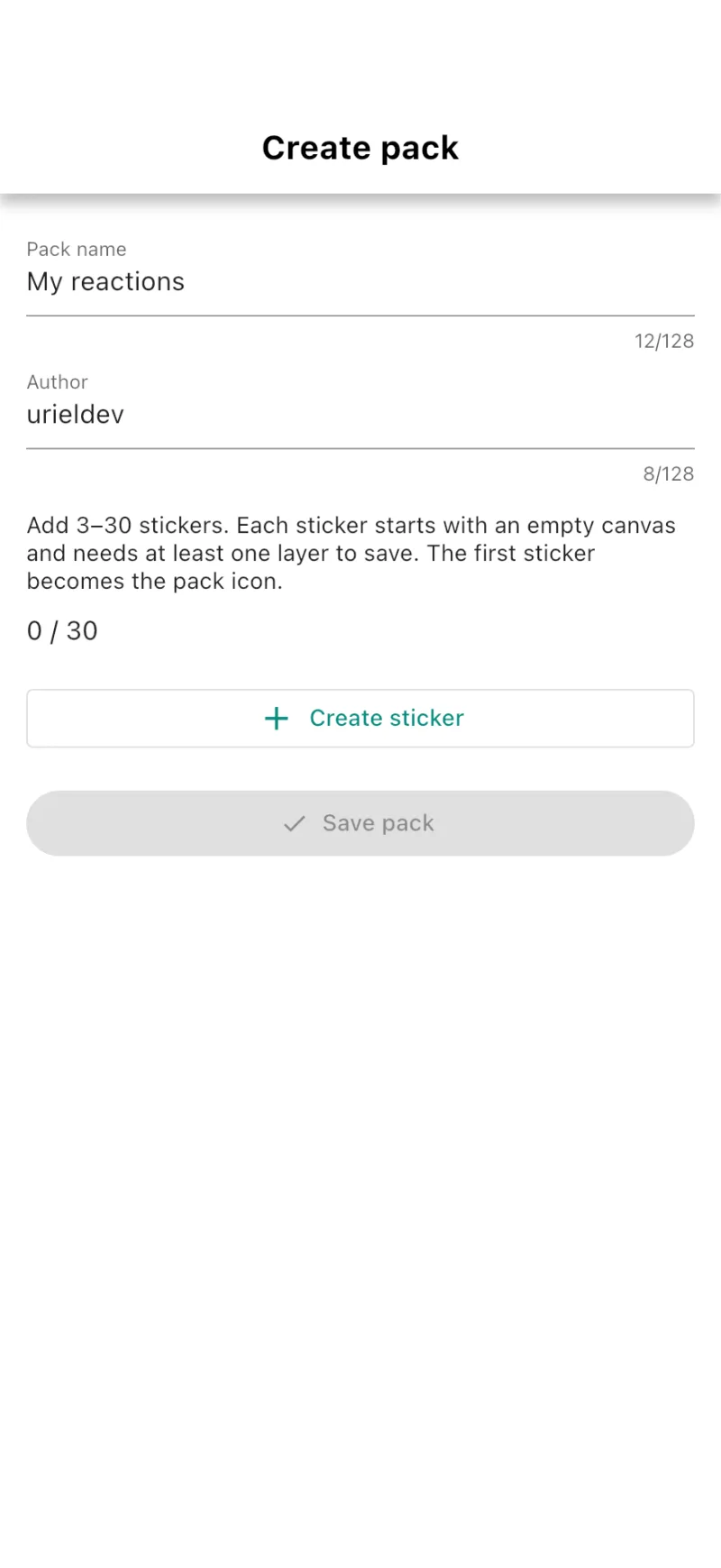
Add an image to your sticker
Choose Create sticker to open the editor. Add a photo or image from your device. Crop it, adjust its size, and position the subject on the canvas.
Add a photo or image to the canvas, then adjust its size and position. 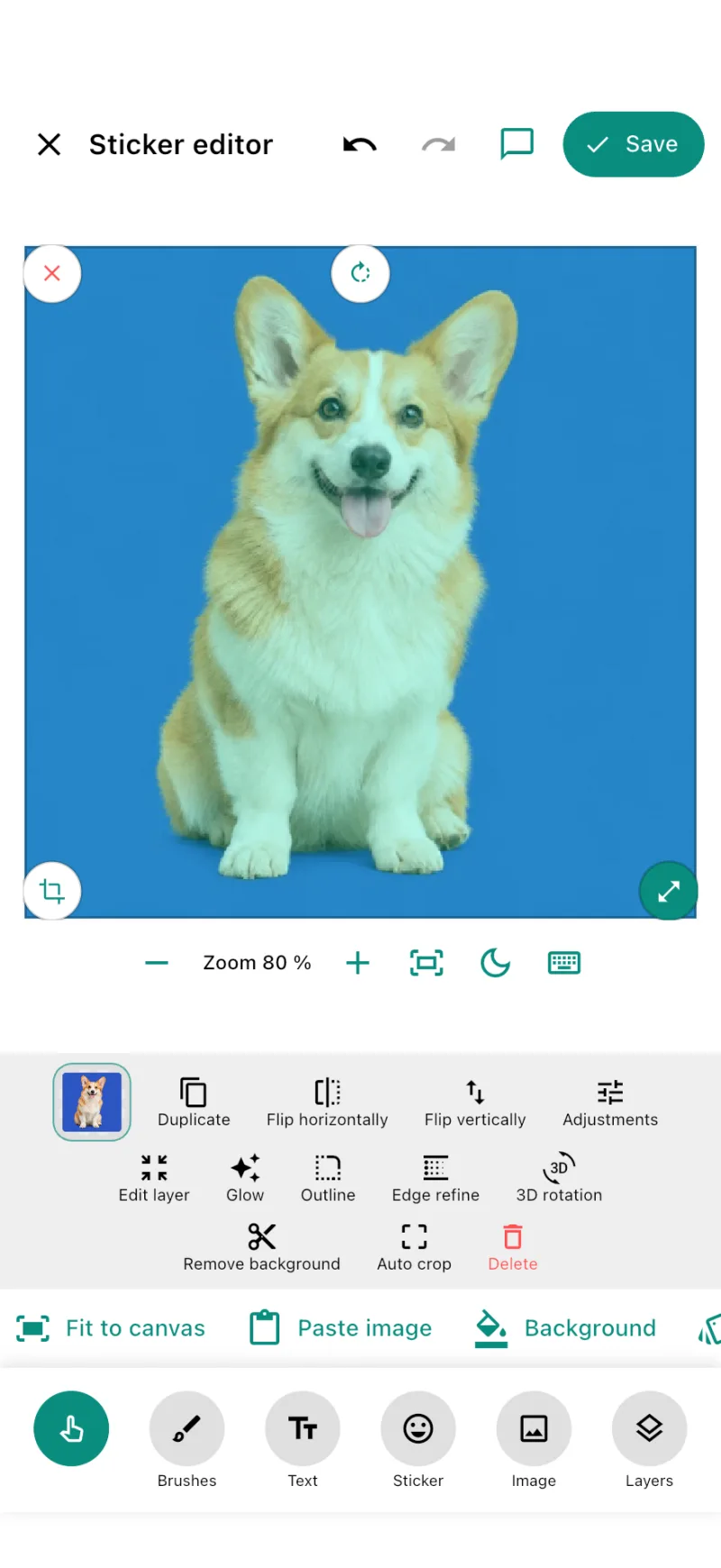
Remove the photo’s background
Select the photo layer and tap Remove background. Wait for the cutout to finish, then check that the whole dog remains visible against the transparency checkerboard.
Use Remove background to separate the dog from the original photo. 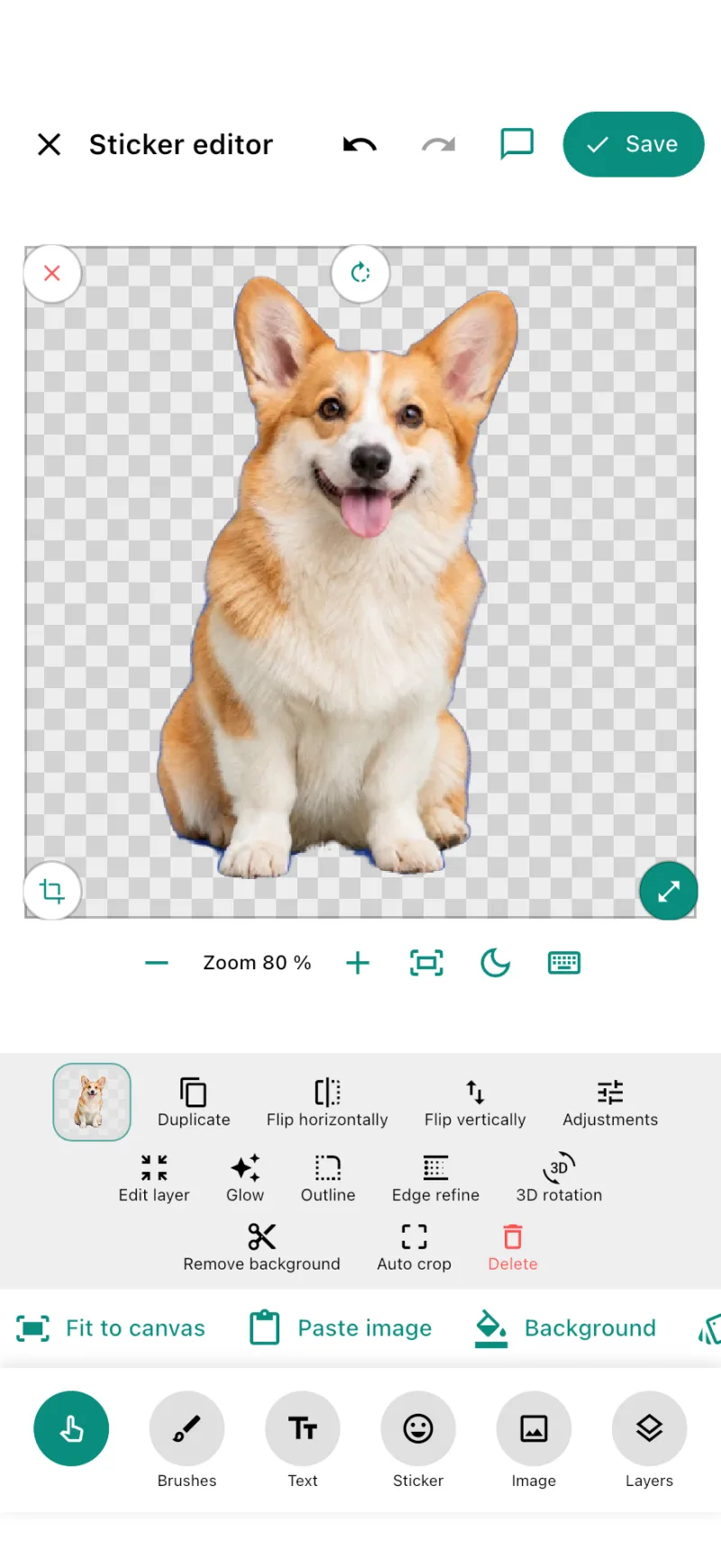
Refine the cutout with Edge refine
With the photo layer still selected, open Edge refine. Start with moderate choke and feather settings, and use color decontamination if a background halo remains. Check the fur and ears against light and dark backgrounds, then confirm with Done when the edge looks natural.
Smooth the edge, remove color halos, and confirm the refinement before adding text. 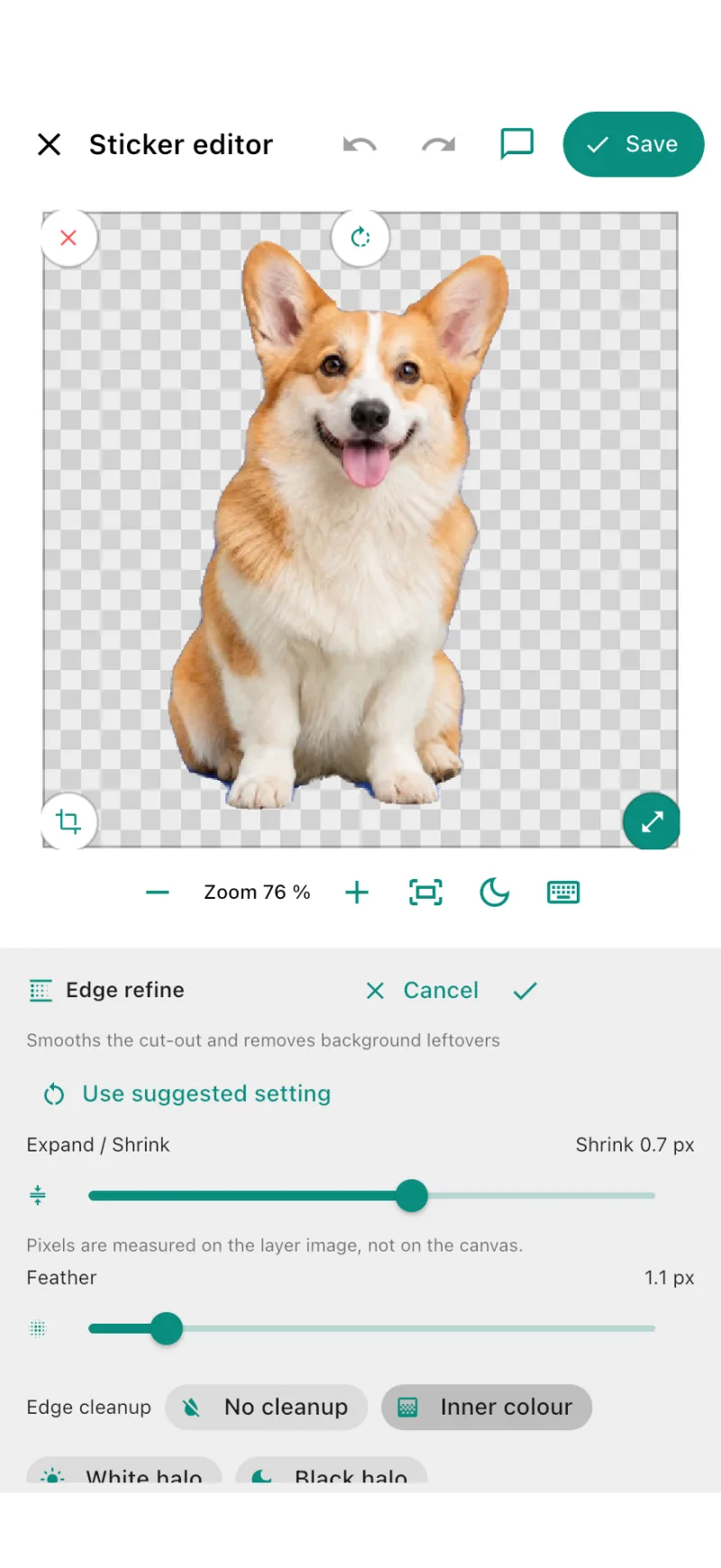
Add a caption with personality
Open Text and enter “TREAT, PLEASE!”. Choose a bold, readable font, split the caption into two lines if needed, and position it without covering the face. Adjust the lettering’s color and outline so it stays readable at chat size.
Add a short caption, choose a readable font, and keep the dog’s face visible. 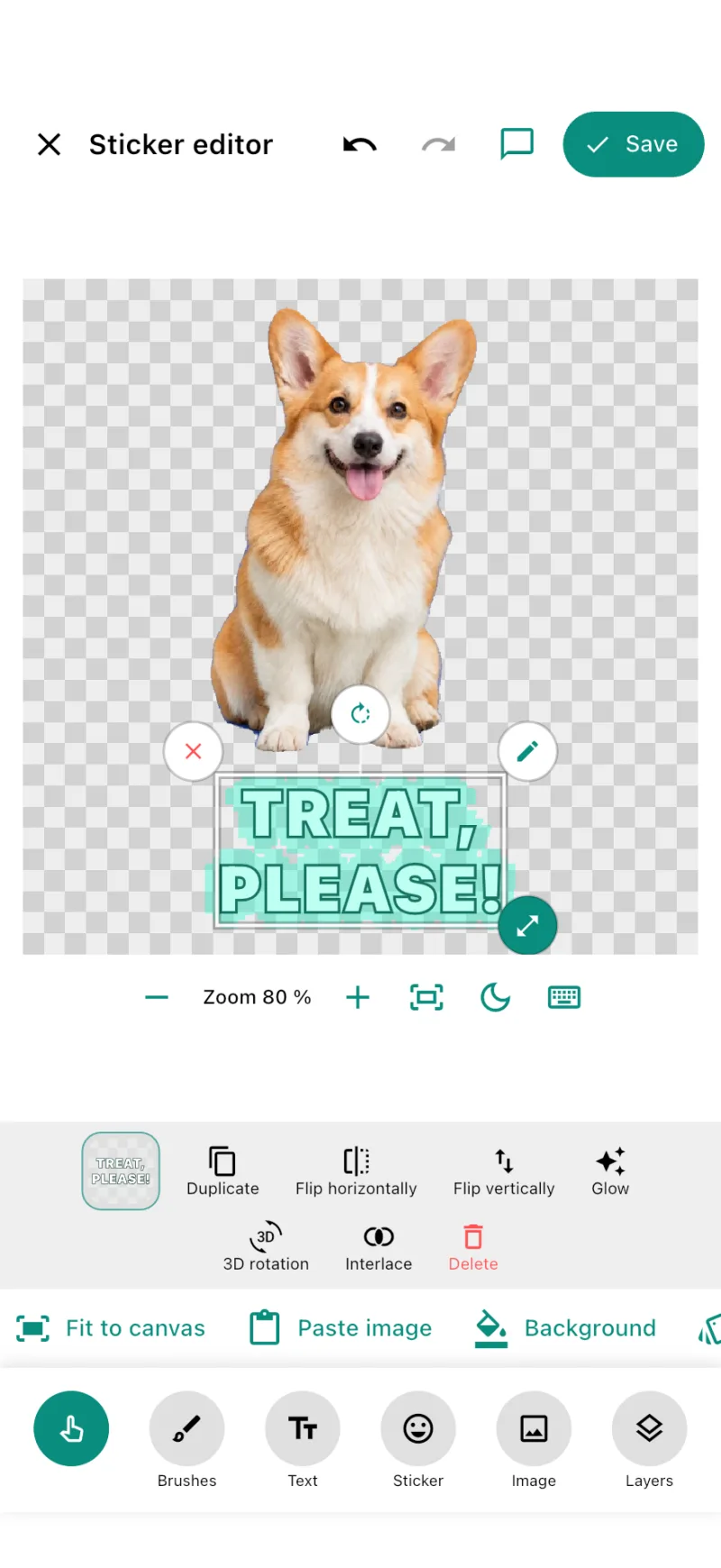
Finish the sticker with Outline
Open Outline and add a white border to the cutout and lettering. Adjust its width to bring the composition together without losing the fur’s detail. Check the whole sticker in the chat preview on both light and dark backgrounds.
A white outline and carefully placed lettering turn the cutout into a reaction ready for a chat. 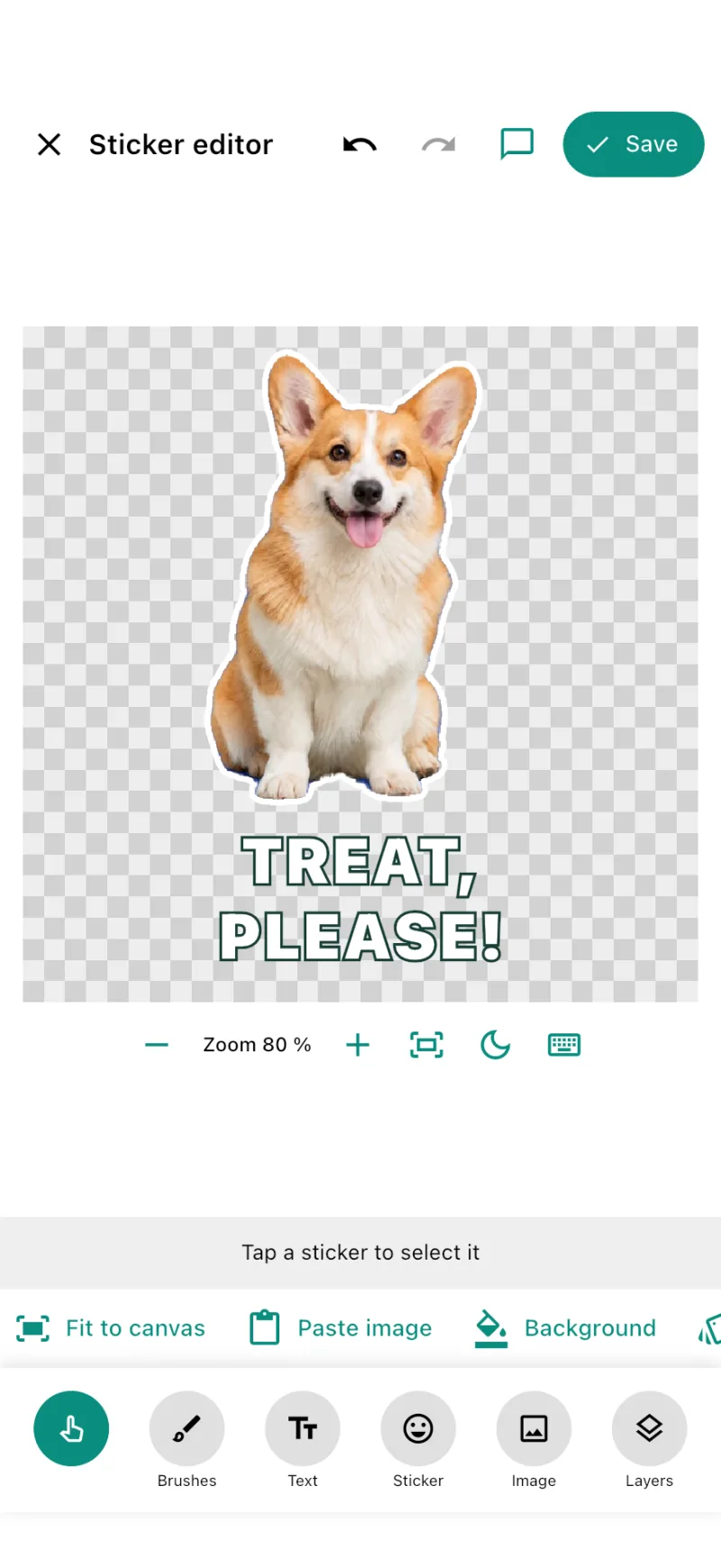
Save and start using your pack
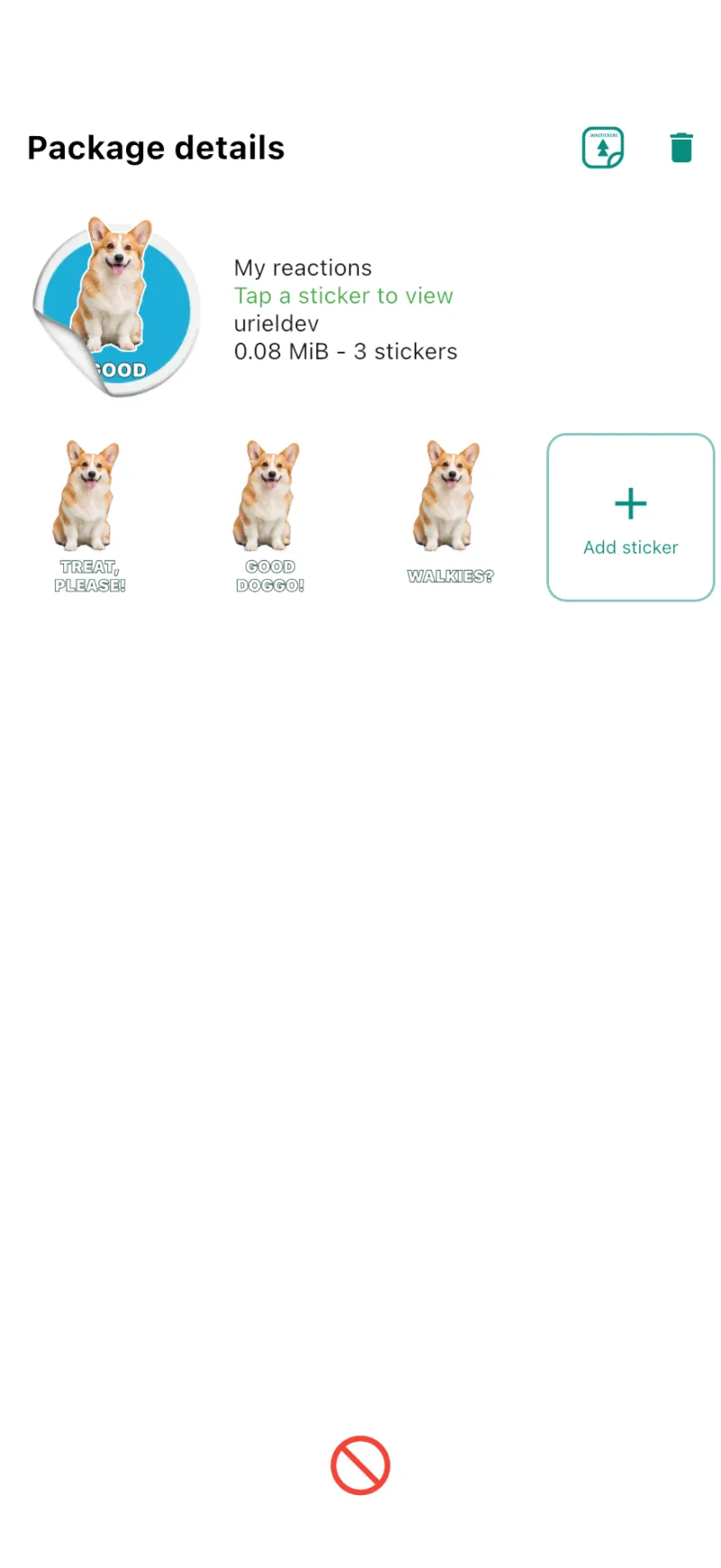
Create at least 3 stickers, up to 30 per pack. Save the pack, open it in your library, and tap the WhatsApp button. Confirm in WhatsApp to use it in your chats.
Review your pack’s stickers before adding it to WhatsApp or exporting it.