Guides · 8 steps
How to delete sticker packs or remove individual stickers
You can delete an entire pack from Sticker Downloader or keep the pack and remove a single sticker. These are separate actions. Follow both examples using the MexicanAxolotl and eto1w Telegram packs.
Available on Google Play and AppGallery
Before you begin
Sticker Downloader for Android and downloaded packs in your library. To follow along, download MexicanAxolotl and eto1w from their public Telegram links. Export a .wastickers copy first if you want a backup.
Delete a pack: open it in your library
Find the pack you want to delete and open it. The first example uses MexicanAxolotl. Check its name and stickers to make sure you have selected the right pack.
Library with both example packs downloaded. 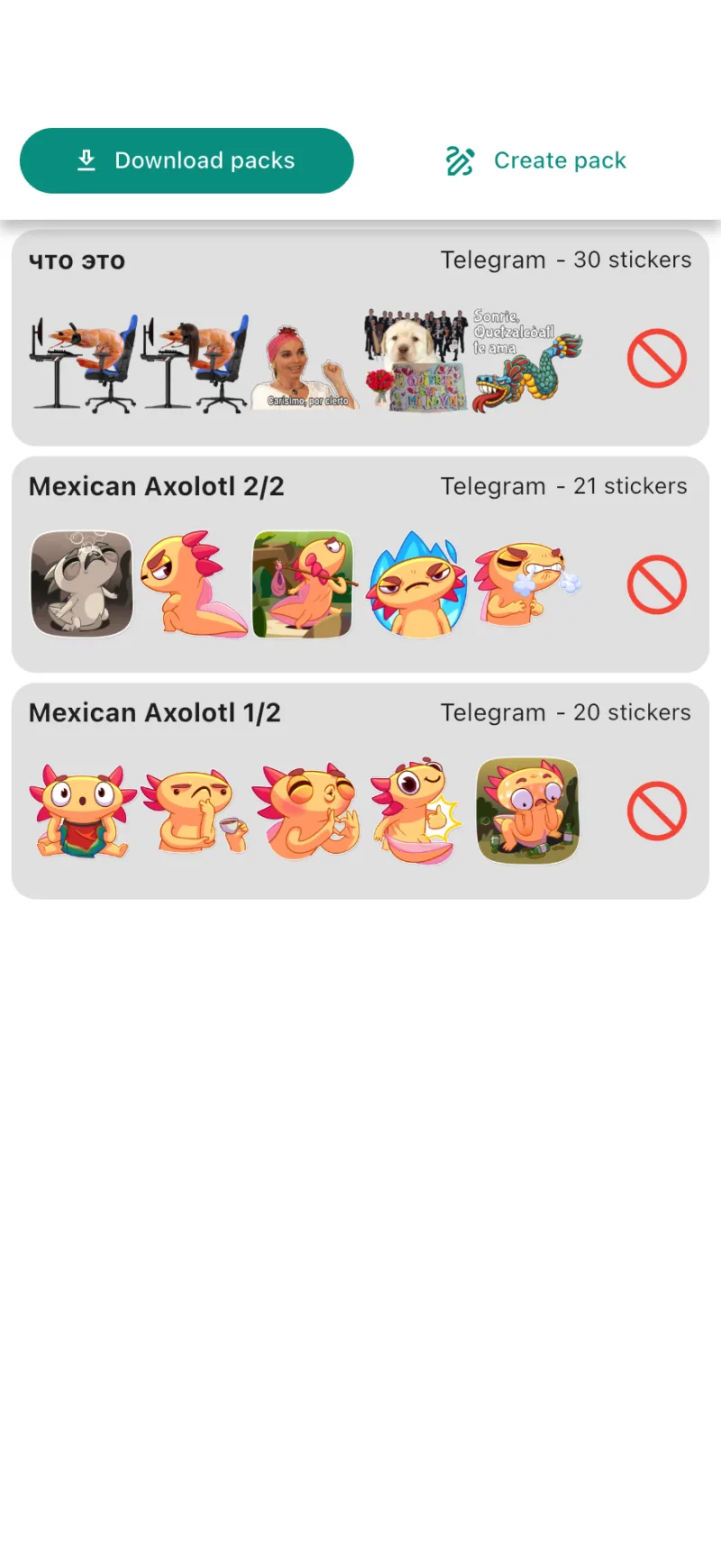
Tap the pack’s trash icon
In the top bar of the pack details, tap the trash icon. This action applies to the pack you are viewing, rather than an individual sticker.
Check MexicanAxolotl before using the top trash icon. 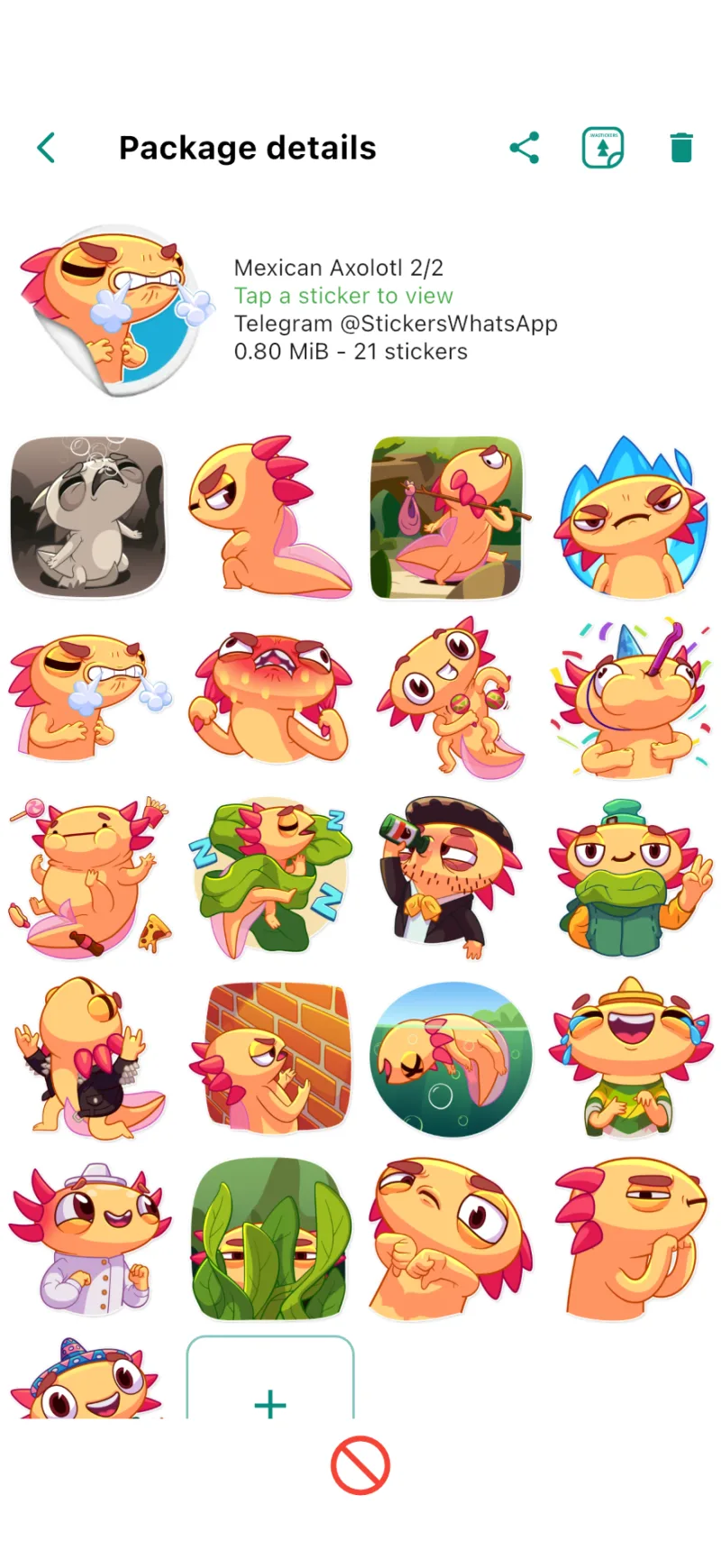
Read the confirmation and delete the pack
Check the message and tap Delete to continue, or Cancel to keep it. Deletion cannot be undone. If the download was split into subpacks, only the selected subpack is deleted; the others are kept. In this example, MexicanAxolotl is split into two subpacks and we delete only one.
The confirmation explains whether a pack or just one subpack will be deleted. 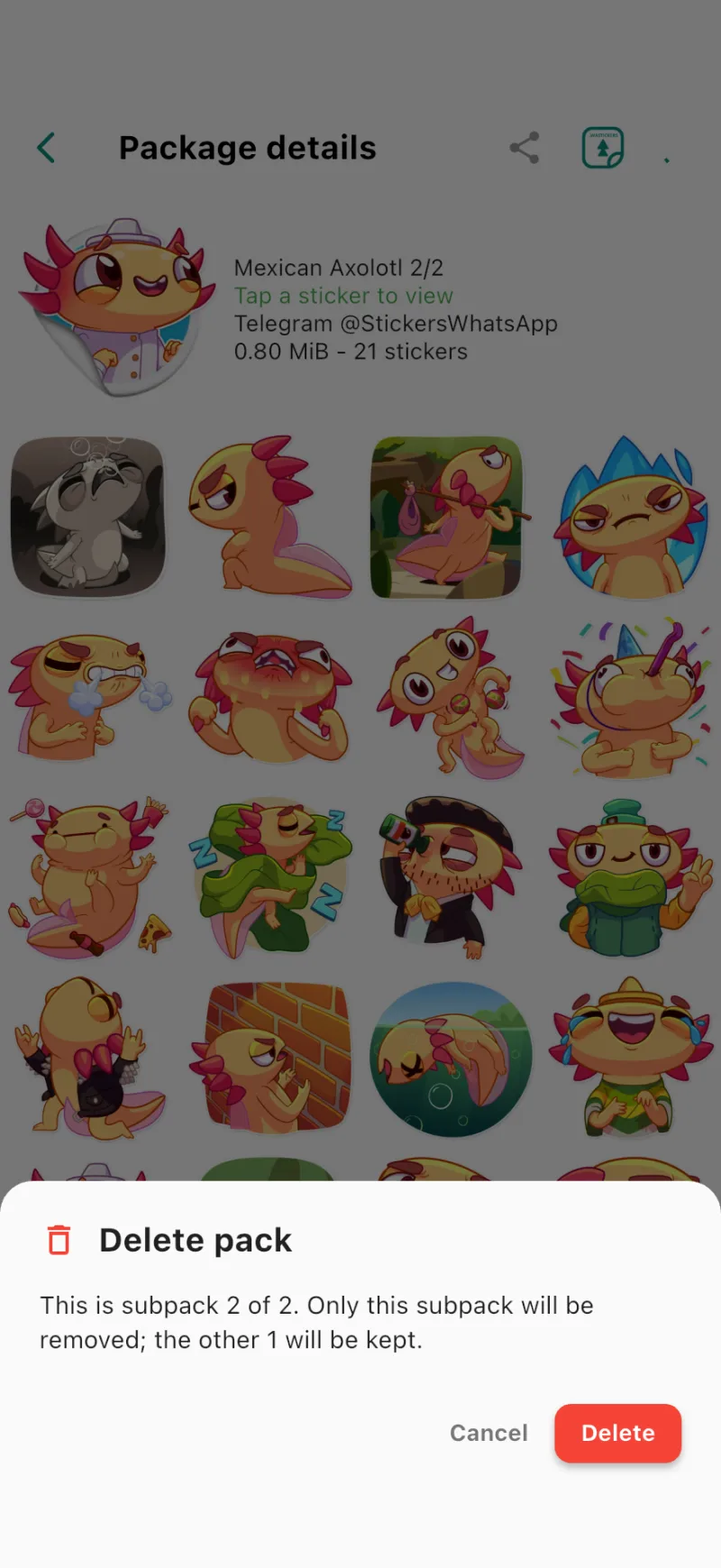
Check your library
After confirming, you return to the library. The deleted pack or subpack is no longer listed, while the others remain available. To restore it, download it again or import a copy you saved.
The library keeps the packs you did not delete. 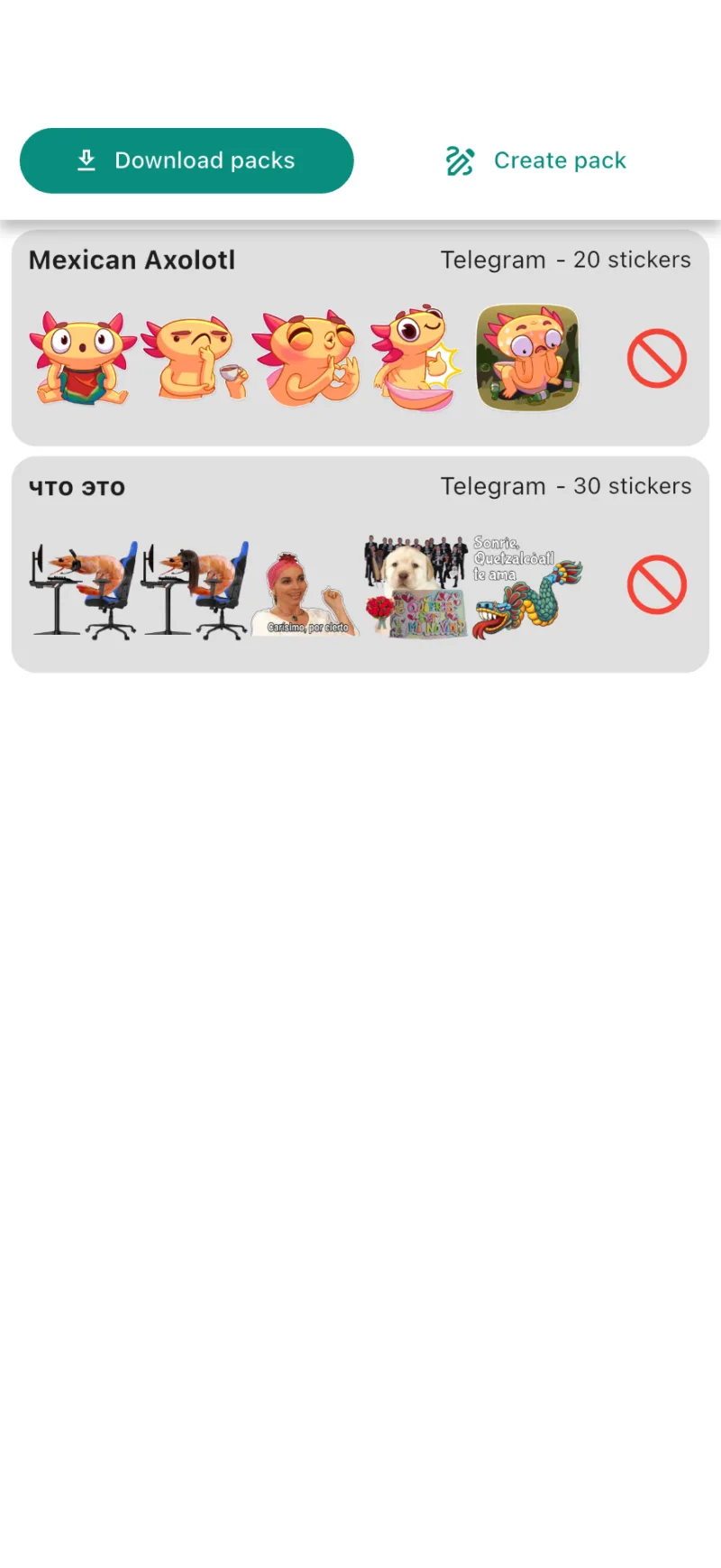
Remove one sticker: open the pack you want to keep
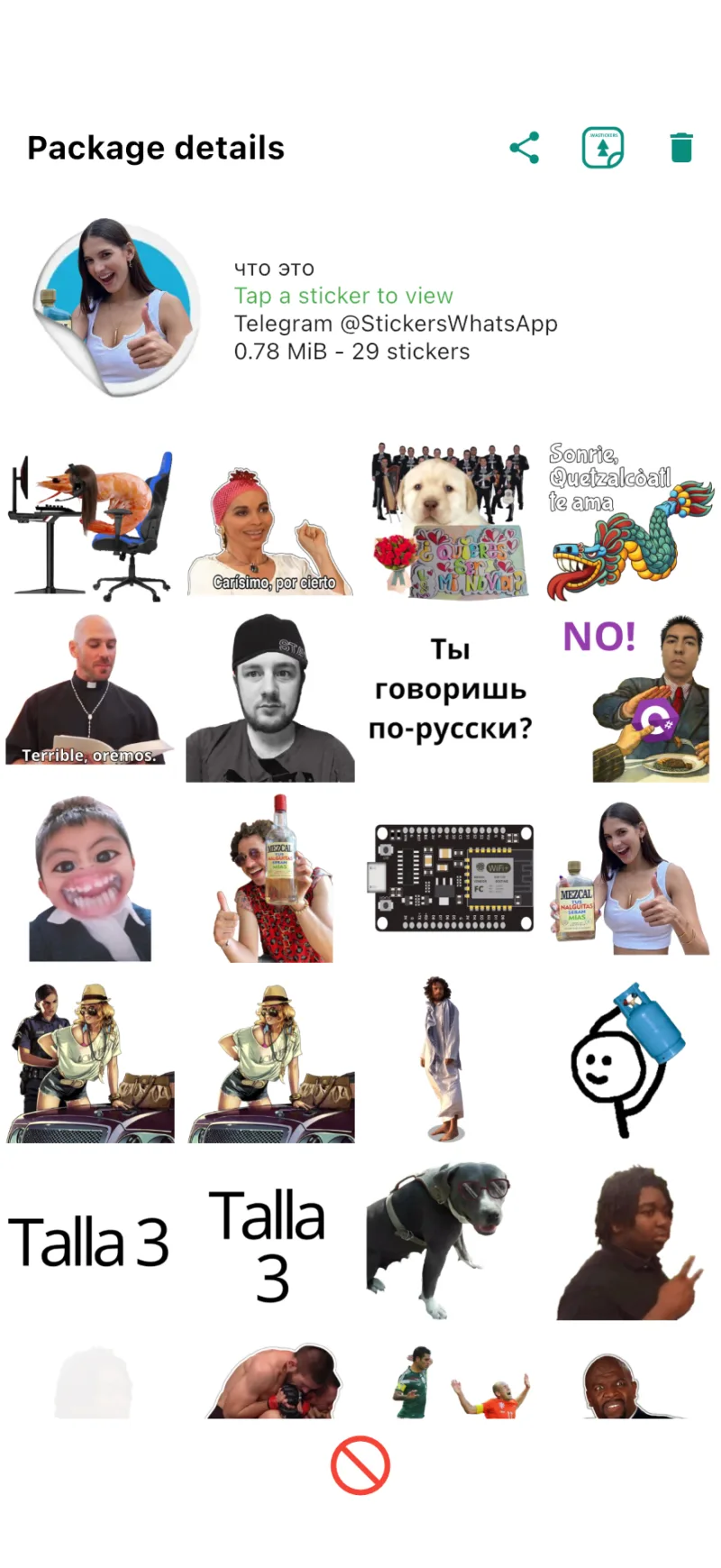
Open the eto1w pack in your library; its displayed name is “что это”. The pack must contain more than three stickers to remove one.
The second example keeps the eto1w pack. 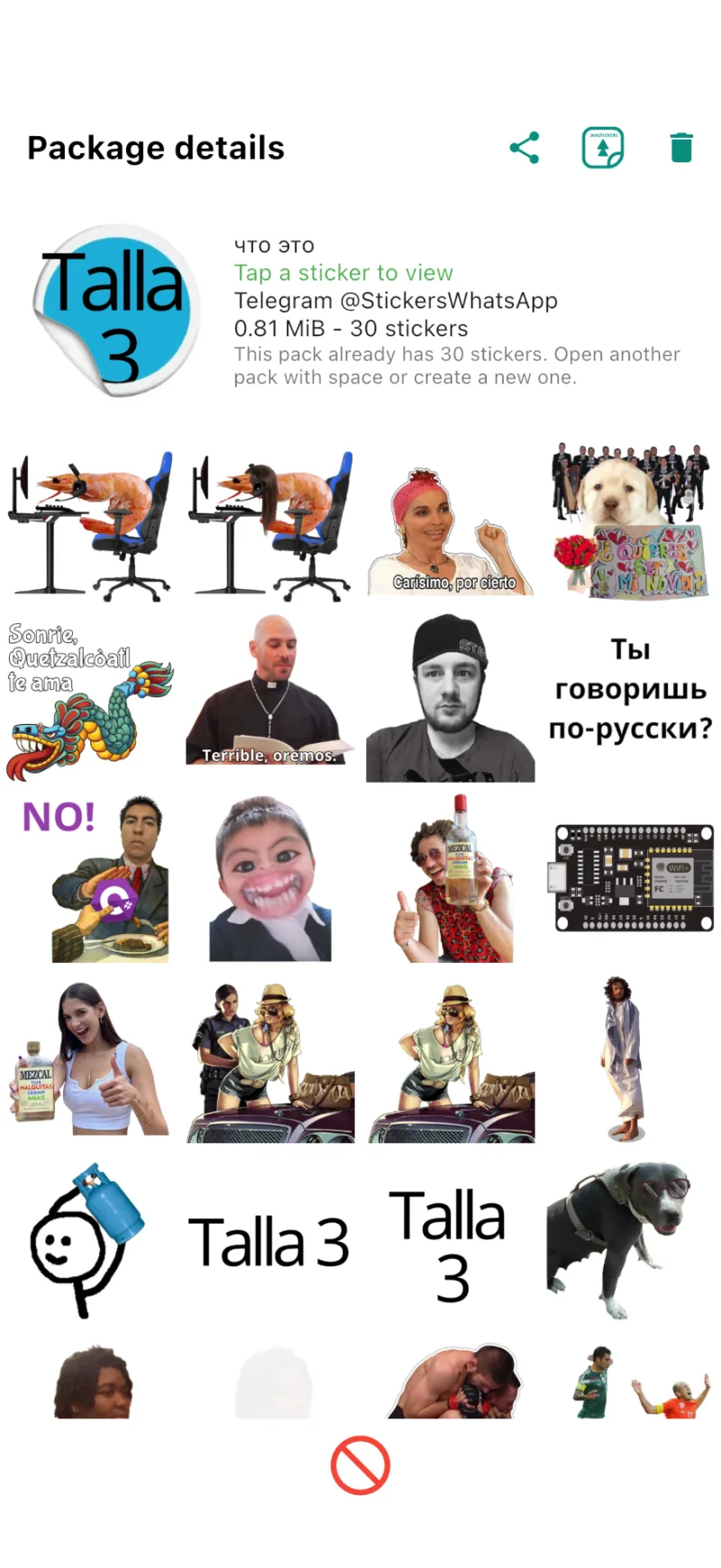
Open a sticker and choose Remove from pack
Tap the sticker you want to remove to open its enlarged view. In that view’s controls, tap the trash icon, labeled Remove from pack. This action selects just one sticker.
The enlarged view includes Remove from pack. 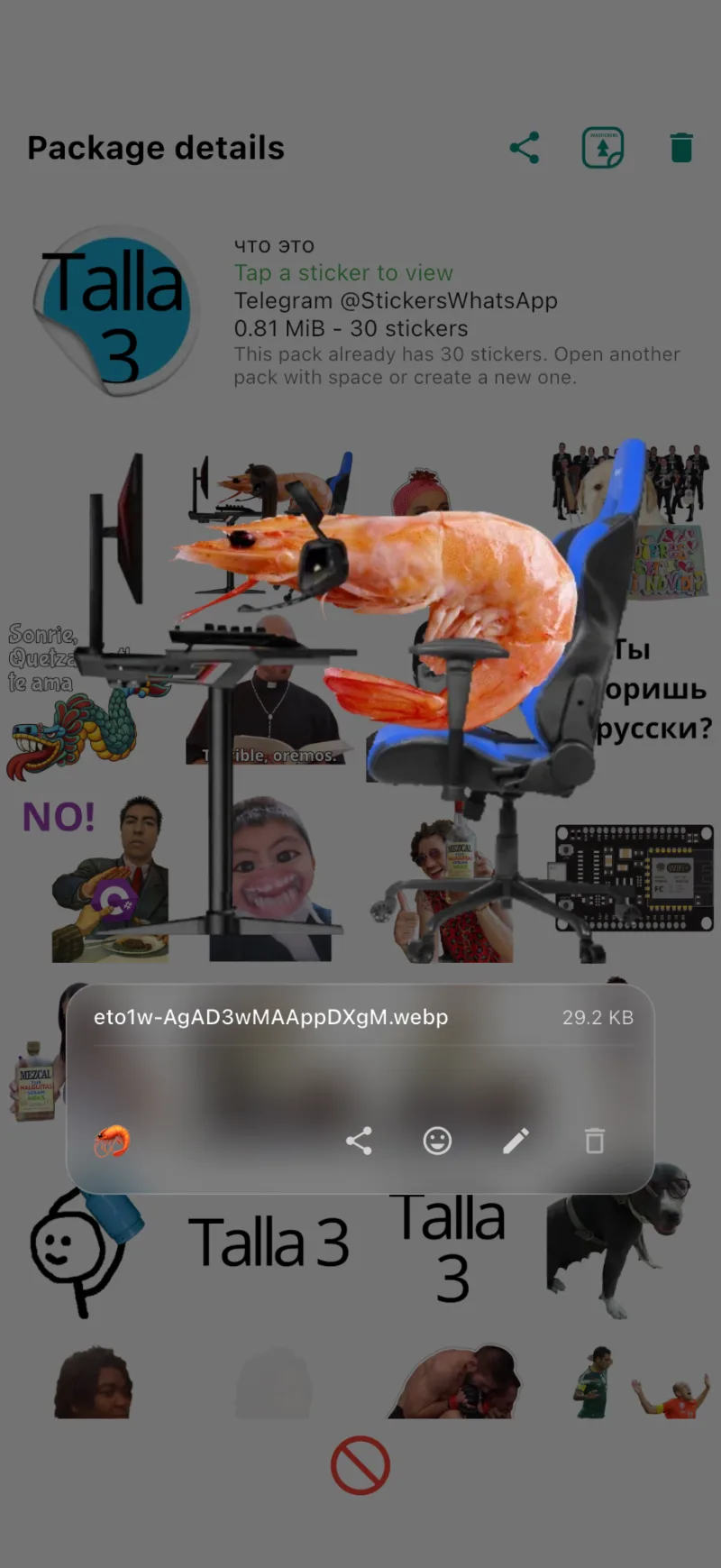
Confirm the individual sticker removal
Read the confirmation and tap Remove. Choose Cancel if you selected the wrong sticker. This action cannot be undone and does not delete the entire pack.
Confirm removal of one sticker. 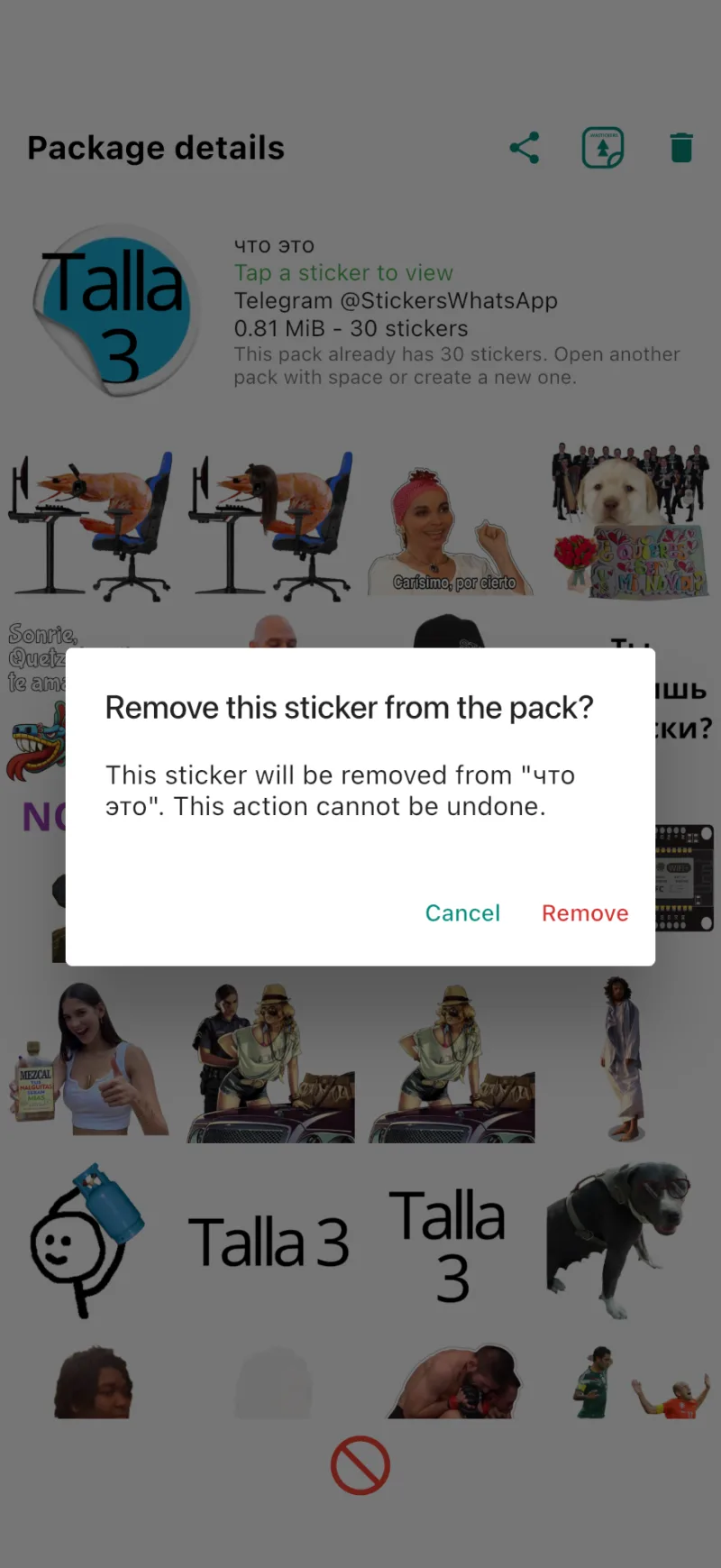
Check the remaining stickers
The grid updates without the removed sticker. At least three must remain: the remove option is hidden when the pack has only three. If the pack was already added to WhatsApp and the app offers an update, confirm it to send the changes.
The pack remains available with one fewer sticker.